 BCE Connect
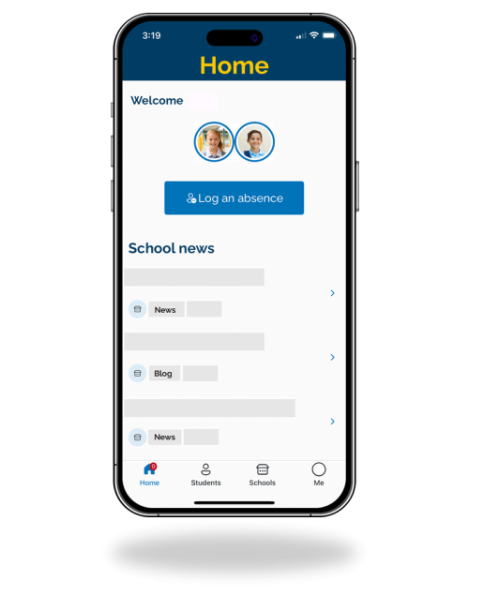
BCE Connect is a managed mobile application developed by Brisbane Catholic Education to serve as a central hub for College-related communication and engagement. Designed for parents and carers, it provides secure and easy access to College and student information. BCE Connect is your ultimate school companion; making it easier to stay informed and connected!
Key Features:
- Personalised home page experience
Instantly access your child/ren's profile/s, log absences, and stay updated with College news, blogs, and events - all from one central hub.
- Streamlined navigation
Quickly find what matters most with direct links to Reports, Parent Slips, and the Assessment Calendar - no more digging around.
- Important links at your fingertips
Access the College newsletter, directory, and essential documents with ease through quick links designed to simplify your day.
- Tailor your experience
Tailor your experience with options like Dark Mode, password updates, and seamless access to the Parent Portal.
Getting Started with BCE Connect
BCE Connect is available to download from your chosen App Store. Simply follow the steps in the New User Guide linked below to set up your account.
Download BCE Connect


For steps on how to set up your BCE Connect account, click here or refer to the video below.
Troubleshooting Access
Please find steps below to troubleshoot your access in BCE Connect.
Parent / Legal Guardian - BCE Connect Checks
To ensure you are using the most up-to-date version of the app, please complete the steps below. Please note, you may be able to log in after any of these steps, so it may not be necessary to complete all of them.
Please be advised for optimal performance, Google Chrome must be installed on Android devices, and Safari must be installed for iOS devices.
- Go to your app store - Open your device's app store and search for BCE Connect. If an update is available, please update the app to get the latest changes.
- Mobile data - Ensure Mobile data is switched on your device.
Please note: if you choose to turn off your mobile data your device will no longer be able to access the internet, receive notifications, perform app updates or download media.
- Autofill - Your device can offer to save passwords for websites and apps, and these may be incorrect, particularly if you have updated passwords. Check your device's saved passwords to confirm they are correct or turn off this feature using the steps below.
iOS – Open the Settings app and scroll down to Passwords. Select AutoFill Passwords and turn off the AutoFill Passwords slider.
Android - Open the Settings app and scroll down to General management. Open Autofill service and change the setting to None.
- Clearing Cache - deleting cache removes the website data your phone has stored. This builds up over time and can slow things down if it becomes bulky or out of date. Clearing the data also gives websites a 'fresh start' which may fix loading errors and speeds up your browser.
- iOS Users – Safari Browser
- Open the Settings app on your iPhone.
- Select Safari from the list of apps.
- Go to Clear History and Website Data.
- Choose Clear History and Data in the pop-up box.
- Android Users - Google Chrome Browser
- Open the Settings app on your Android device.
- Scroll to find Apps and select it.
- Find and select BCE Connect, tap Storage.
- Click Clear Cache.
- Log Out and Login - From the app's 'Me' screen, scroll to the bottom and select Log out. Open the app again, and log in. Ensure there are no spaces at the end of the username or password.
- Uninstall and Reinstall BCE Connect - Open your device's app store and search BCE Connect. Install and open the BCE Connect mobile application.
Should you still be experiencing issues after completing the steps above, please contact the College for assistance.